


Apple has buried incredible tools deep inside the iOS menus, but they don’t always do a great job of advertising them. We asked our team of Apple Champions what features they actually use, not the gimmicks, but the ones that save them time every single day.
Here are the top 9 underrated iPhone features you need to start using right now.
Table of Contents
1. Siri in CarPlay, hands-free help during every drive
2. The Tips app, the built-in answers most people ignore
3. Accessibility tools, comfort upgrades for every user
4. Photos search, the fastest way to find the right memory
5. Live Text, copy words from the camera without taking a photo
6. Verification code AutoFill, stop switching between apps
7. Vehicle Motion Cues, phone use in a car without nausea
8. Grocery lists in Reminders, a smarter list without extra apps
9. Send Later plus Shortcuts automations, timing plus routines
Conclusion
FAQ
1. Reminders grocery lists with auto-categories
Grocery shopping fails when the list feels messy. Reminders grocery lists sort items into categories, so you stop bouncing across aisles. Most people still use Notes, then suffer through a long, flat list.
What you get
- A list that groups items into sections like Produce, Dairy, plus Bakery.
- Fast add flow while you talk with a family member.
- Shared lists for households plus teams.
Steps
- Open Reminders.
- Create a new list.
- Select the Grocery list type when the option appears.
- Add items as you think of them.
- Review categories plus adjust an item category if sorting feels off.
Grocery list guidance: Apple guidance on grocery lists in Reminders.
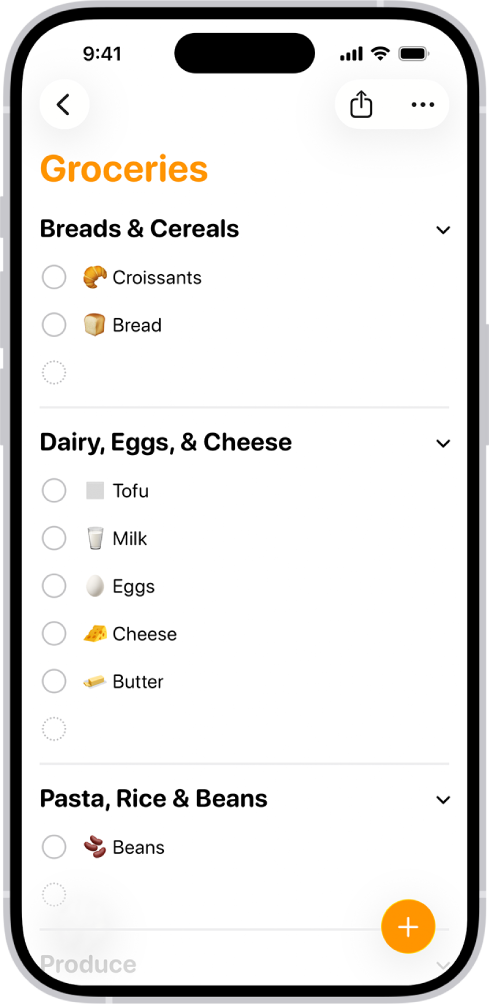
Image: Apple
2. Send Later in Messages
Timing matters. A late text feels noisy, plus an early text feels rude. Send Later helps you write the message now, then deliver at a better time.
Use cases
- Schedule a staff reminder for the start of a shift.
- Send a birthday text at breakfast time, not midnight.
- Send a client update during business hours without forgetting.
Steps
- Open Messages.
- Open the chat thread.
- Type the message.
- Tap the plus icon near the text field.
- Select Send Later.
- Select date plus time, then confirm send.
- Review scheduled messages inside the thread, then edit or cancel if plans change.
Send Later guidance: Apple guidance on scheduling Messages.
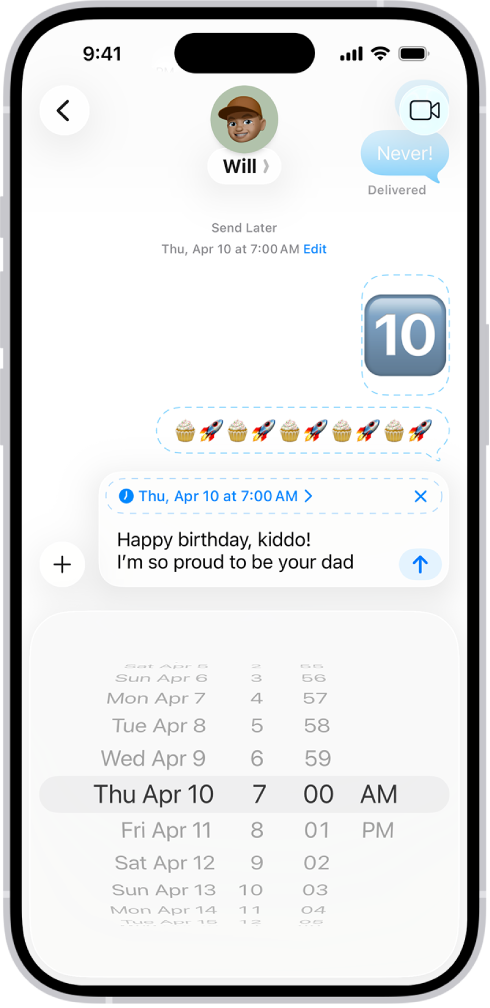
Image: Apple
3. Siri in Apple CarPlay
Driving plus screen tapping do not mix. Apple CarPlay plus Siri gives hands-free control for the tasks drivers repeat. Most owners never set the habit, so the feature sits unused.
What you get
Siri is integrated deeply into CarPlay to keep your eyes on the road. One of our team members mentioned that this saved them from getting lost countless times.
- You can ask Siri to “Share my ETA with my wife.”
- You can say “Add milk to my grocery list.”
- You can say “Remind me to call the dentist when I get to work.”
The “Share ETA” feature is the best one. It sends a map to your contact so they can see exactly where you are and when you will arrive. It stops them from texting you “Where are you?” while you are driving.
Set up plus use steps
- Connect iPhone to the vehicle system through USB or wireless CarPlay, based on the vehicle setup.
- On the CarPlay screen, press the voice button on the steering wheel, or press and hold the CarPlay Dashboard button.
- Speak a direct command. Example: “Call the shop,” or “Text Jamie, running ten minutes late,” or “Directions to the next appointment.”
- For Messages, ask Siri to read new messages, then reply by voice when Siri prompts for a response.
Safety is our priority. If you need help pairing your phone to your vehicle, our team at Tom Harris can often assist with basic Bluetooth and CarPlay troubleshooting.
More guidance: Apple guidance on Siri in the car, plus Apple guidance on Messages with CarPlay.
4. Shortcuts automations
Shortcuts is one of the most underused apps on iPhone. It saves time because it removes repeat steps. If you do something often, Shortcuts is worth learning.
What you get
- A morning routine that runs at a set time.
- A work arrival routine that opens the apps you use on shift.
- A night routine that sets Focus plus starts a timer.
Good starter automation: a morning kick-off
You wake up, then your phone runs the same flow every day. Weather, calendar, a quick reminder list, plus maybe opening the apps you start work with.
Steps to build a personal automation
- Open Shortcuts.
- Tap Automation.
- Tap New Automation, or tap the plus icon.
- Select a trigger, such as Time of Day.
- Select actions, such as Open App, Show Notification, or Start Timer.
- Review “Ask Before Running” based on your comfort level, then save.
Shortcuts plus ChatGPT, in a practical way
Many people use ChatGPT for quick drafts, summaries, plus checklists. Shortcuts helps route a repeated prompt into a single tap.
One approach uses a shortcut that opens a note template, then copies the prompt, then opens your preferred AI app for paste.
Shortcuts overview: Apple Shortcuts introduction.
5. Back Tap: The Secret Button You Didn’t Know You Had
You hold your phone all day. You look at the screen. But the back of your phone is useful too.
Apple added a feature called “Back Tap” a few years ago. It turns the Apple logo on the back of your case into a button. You can tap it twice or three times to trigger an action.
You can “Double Tap” set to turn on the flashlight or “Triple Tap” to open the Camera. You don’t need to look at the screen. You don’t need to swipe down the Control Center. You just tap the back of the phone with your index finger.
It works through most cases, too.
How to set it up:
- Open the Settings app.
- Scroll down and tap on Accessibility.
- Tap on Touch.
- Scroll to the very bottom. Tap Back Tap.
- Select Double Tap.
- Choose an action (Flashlight, Camera, Screenshot, or Mute).
- Go back and do the same for Triple Tap.
Pro Tip: If you have smart home lights, you can use the Shortcuts app to make a “Lights Out” shortcut. Assign that shortcut to Back Tap. You can turn off your house lights just by tapping your phone against your leg.
Back tap guidance Apple Guidance on Back Tap.
6. The Tips App: The Manual You Threw Away
Many owners delete the Tips app or ignore the app. Then an iOS update moves a button, plus confusion starts. Tips solves common questions with short, visual guidance. Apple updates this app constantly. When they release a new feature (like the ones in this list), they put a short, 10-second tutorial in the Tips app. It is the single best way to learn your phone.
What you get
Tips groups features by theme. You get quick explanations plus direct paths into Settings. The app works well right after an update.
Best ways to use Tips
- Search “text size,” “camera,” “battery,” or “privacy.”
- Save a Tip for later when you plan a setup session.
- Use Tips as a training tool for a parent, teen, or new iPhone owner.
Steps
- Open Tips.
- Use Search inside Tips for the task you want.
- Follow the short steps, then return to Tips for the next task.
Official overview: Apple Tips app guidance.
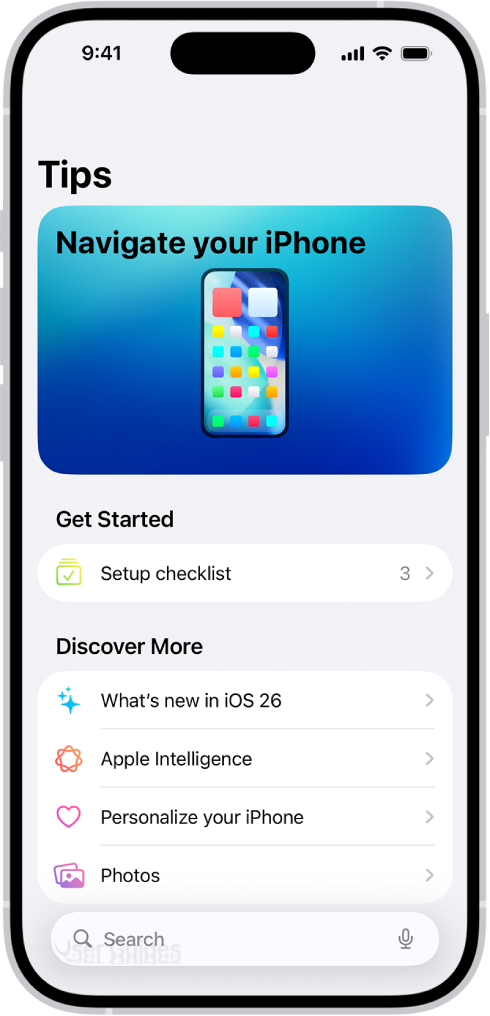
Image: Apple
7. Copy text from the Camera viewfinder with Live
Your camera can read text. It is called Live Text. It turns your camera into a scanner. You can copy text from a piece of paper, a sign, or a computer screen. You can then paste that text into a message or email. Live Text pulls text straight from the viewfinder. The action saves time for serial numbers, Wi-Fi passwords, plus addresses.
Use cases
- Copy a tracking number from a label.
- Copy an address from a poster into Maps.
- Copy a long Wi-Fi password from a sticker.
- Copy a part number from a tool manual.
Steps
- Open Camera.
- Point the camera at the text.
- Tap the Live Text icon when the icon appears.
- Select the text, then tap Copy, or use an action like Translate based on your options.
Live Text guidance: Apple guidance on Live Text.
8. Visual Look Up
You see a plant, a landmark, or a symbol on a clothing tag. You want the name fast. Visual Look Up identifies what you are looking at from a photo, with no extra app.
What you get
Visual Look Up scans a photo, then surfaces details. It works on plants, animals, landmarks, plus laundry care symbols. You get a quick answer, then you decide your next step.
How to use it:
- Open your Camera app.
- Take a clear picture of a flower, pet, or statue.
- Open the Photos app and tap on that picture.
- Look at the bottom of the screen.
- If the “i” (Info) button has sparkles around it, the phone knows what it is.
- Tap the Info button.
- Tap Look Up Plant (or Dog, or Landmark).
- Read the results.
Real world use: On a laundry tag. Don’t what the “triangle with an X” means? Visual Look Up can tell you: “Do Not Bleach.” It will save your favorite shirt.
Tip
People often try to describe what they see, then guess the name. Visual Look Up helps you confirm the item on the spot.
It also helps when a you have a specific a photo and wants quick answers.
Visual Look Up guidance: Apple guidance on Visual Look Up.
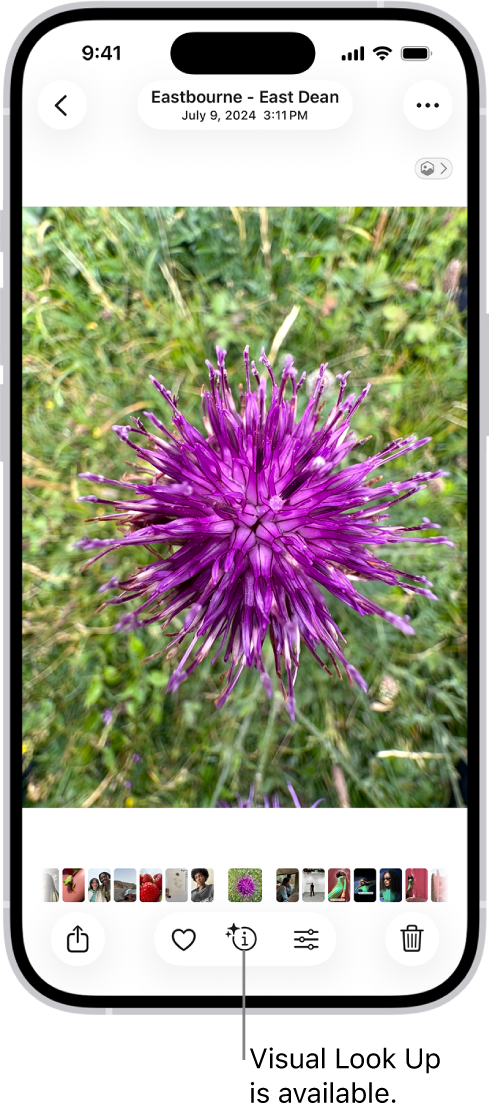
Image: Apple
9. Text Replacement: Stop Typing the Same Thing Twice
Typing on a phone feels slow. It also leads to typos, especially with emails plus addresses. Text Replacement lets you type a short shortcut, then the iPhone expands it into the full phrase.
What you get
Create shortcuts for phrases you type all the time. Examples include your email, your address, plus common replies like “On my way.” You save time, plus you cut down errors.
Steps
- Open Settings.
- Tap General.
- Tap Keyboard.
- Tap Text Replacement.
- Tap the plus icon.
- Enter your full phrase in Phrase.
- Enter your shortcut in Shortcut.
- Tap Save.
Tip
Avoid real words as shortcuts. If you set “address” as a shortcut, it will trigger when you type the word normally. Use a unique code like “@@” or “addy1” so it only triggers on purpose.
Text Replacement guidance: Apple guidance on Text Replacement.
Conclusion
Your iPhone already includes tools that make daily tasks smoother. Most people never set them up, so small annoyances stack up all day.
Pick one feature from this list and set it up today. Use it for a week. You will notice the difference fast, less tapping, less searching, plus fewer repeated steps. Then add one more feature. Keep going until your phone matches how you live.
If you want a hand with setup, visit us at Tom Harris. Bring your iPhone plus your questions. Our team will show you the exact steps, then help you set it up the right way for your routine.
FAQs
Do these features work on every iPhone model
Most sections work across many iPhone models. Some features depend on iOS version. Update iOS, then test the feature inside Settings or the app menu.
Who should walk you through setup?
A store walkthrough helps if you want faster setup plus fewer mistakes. Visit a Tom Harris store and ask for a quick iPhone feature setup. Start here: Tom Harris locations.